How to Connect Zerodha with Tradetron: Step-by-Step Guide (2026)
To connect Zerodha with Tradetron, add Zerodha under Broker & Exchanges in Tradetron (placeholder details are fine at first), enable a Tradetron virtual server for it, create a Kite Connect app at developers.kite.trade with Tradetron's redirect and postback URLs carrying your Tradetron user ID, whitelist the virtual server's address on your Kite developer profile, then enter your real API key and API secret in Tradetron. After that, log in once each trading morning.
What you need before you start
| You need | Where it comes from |
|---|---|
| Zerodha account with the segments you'll trade (equity, F&O, commodity) | Zerodha |
| Tradetron account and your Tradetron user ID | Tradetron (it is not your Zerodha client ID) |
| Kite Connect developer account | developers.kite.trade (separate from your normal Kite login) |
| A Kite Connect app: API key and API secret | Created in the Kite developer console |
| A Tradetron virtual server | Enabled on Zerodha's edit page under Broker & Exchanges; you whitelist its address with Zerodha |
| Your Zerodha login | Used on Zerodha's own login page for the daily login |
New to algo trading? Start with what algo trading is, then come back. If anything below doesn't match your screen, Tradetron's help centre has the current walkthrough.
Part 1: In Tradetron, add the broker and enable a virtual server
- Log in to Tradetron and open Broker & Exchanges from your account menu.
- Click Add Broker and select Zerodha. Enter placeholder details for now; you'll replace them in Part 3. Adding the broker first is what makes the Enable virtual server button appear on its edit page.
- Click the edit icon next to Zerodha, then Enable virtual server. Pick a plan and pay from your Tradetron wallet or online (the virtual server page has the prices). Tradetron emails you the server's address; Email server details on Broker & Exchanges sends it again. You'll whitelist it with Zerodha in Part 2.
Part 2: On the Kite Connect developer console
- Log in at developers.kite.trade with your Zerodha credentials. If you haven't used Kite Connect before, register and choose a plan. Zerodha offers a free Personal plan that covers order placement, and a paid plan that adds live and historical market data; check Zerodha's current pricing.
- Create a new app. Go to My Apps → Create New App. Give it a name you'll recognise, such as Tradetron, and enter your Zerodha client ID.
- Set the redirect URL (details below).
- Set the postback URL (details below).
- Save and copy the API key and API secret Zerodha generates.
- Whitelist your virtual server's address from Part 1 under IP Whitelist in the Profile section of the developer console.
The two URLs, exactly
Redirect URL:  https://zerodha.tradetron.tech/login.php?user=YOUR_TRADETRON_USER_ID
Postback URL:  https://zerodha.tradetron.tech/status-update.php?user=YOUR_TRADETRON_USER_ID
Replace YOUR_TRADETRON_USER_ID with your Tradetron user ID in both.
The redirect URL is where Kite sends you after login, so Tradetron gets your session. The postback URL is how Zerodha tells Tradetron an order's status changed. If it's blank or wrong, orders can reach the exchange while your Tradetron dashboard shows stale or missing fills.
Kite Connect's IP rules worth knowing
- The IP is set at the developer account level and covers every app under it. You can't set different IPs per app.
- You can register up to two addresses: one primary (mandatory) and one secondary (optional).
- IPv4 and IPv6 are both supported, but the whitelisted address must match the one your orders actually come from: your virtual server's, not your home or office address.
- You can change the registered IP only once per calendar week, so get it right first time.
- The rule applies to order placement. Market data, positions and the order book still work from any IP, which is why a wrong IP looks like "everything works except orders".
- Zerodha allows sharing a static IP only with immediate family (spouse, dependent children, dependent parents). Wider sharing can get the Kite Connect account and keys suspended.
Part 3: Back in Tradetron, enter your real credentials
- Open Broker & Exchanges and edit the Zerodha entry from Part 1.
- Replace the placeholders with your real details (table below).
- Save. Tradetron validates the credentials and confirms the broker was added.
- Complete the Kite authorisation once now, so you know the redirect URL, credentials and IP all work together before a live morning.
| Field | What to enter |
|---|---|
| API Key | The API key from your Kite Connect app |
| API Secret | The API secret from your Kite Connect app |
| Token | Leave blank |
The Zerodha Username, Password and PIN fields appear only under Auto Login, if you've turned Auto Login on. You don't need them to connect: the daily login happens on Zerodha's own page.
How the integration works
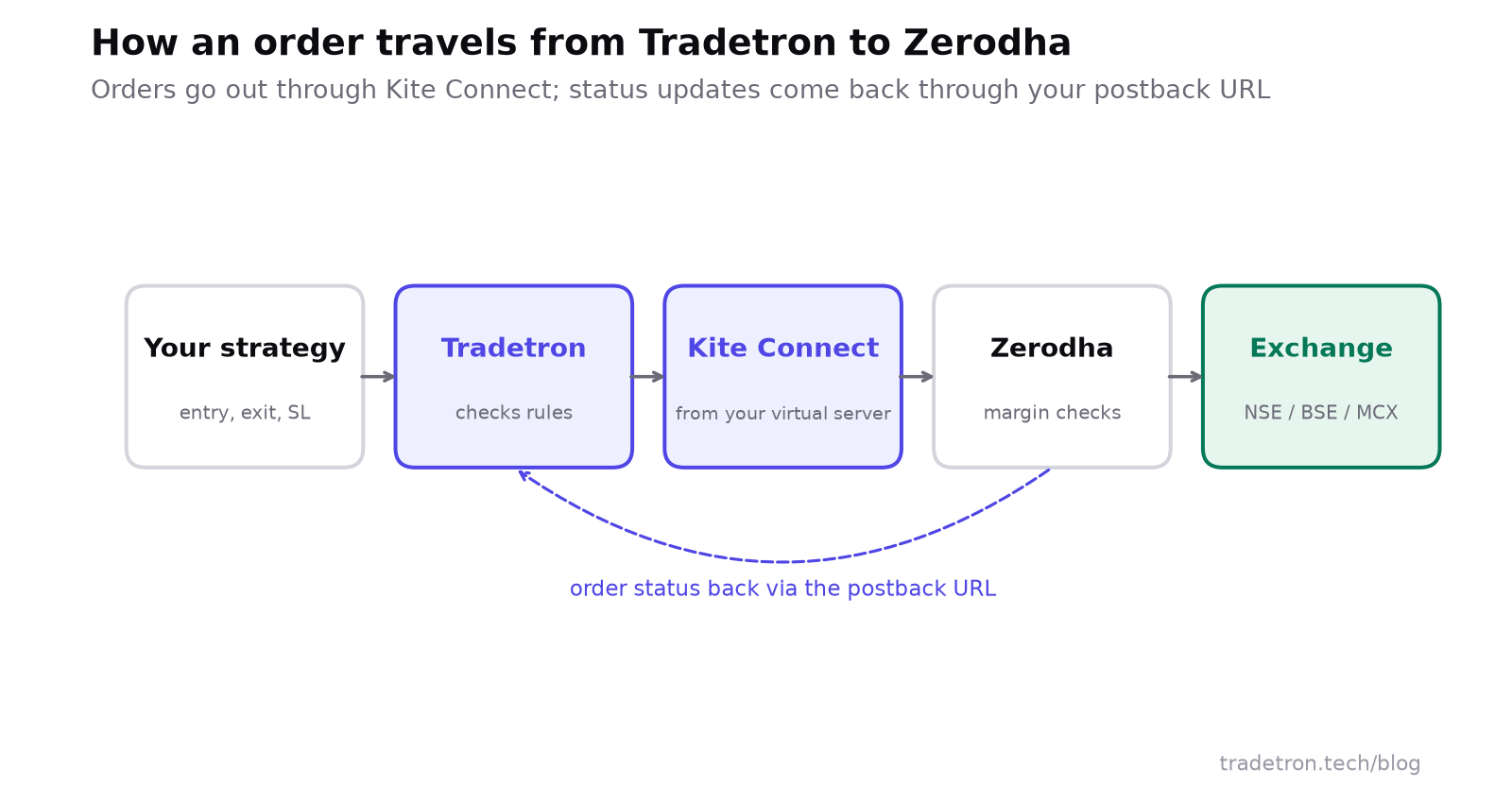 Orders out through Kite Connect, status back through the postback URL
You define entries, exits, sizing and risk limits in Tradetron's strategy builder. When conditions are met during market hours, Tradetron sends the order through Kite Connect. Zerodha checks it against your margin and exchange rules and routes it to the exchange. Status updates come back through the postback URL.
Tradetron can place, modify and cancel orders within what the Kite Connect API allows, and only while that day's access token is valid. It can't move money out of your account or change your account settings.
Kite Connect rules that affect your strategies
- 1 login per trading day: access tokens don't carry over
- 10 orders per second per trading account (Zerodha's limit)
- 2 whitelisted IPs at most per developer account
- Rate limit. Requests beyond 10 orders per second per client account are rejected. Rejected invalid orders still count toward usage.
- Market protection. Zerodha rejects market orders (and SL-M orders) sent through the API with market protection set to zero.
- MCX validity. IOC validity isn't accepted for MCX in the algo segment. Use Day validity.
- SEBI's retail algo framework is live and applies to API orders through your broker. Read what retail traders need to do.
Whether your Zerodha account has Kite Connect access, and on which plan, is a Zerodha-side setting: check your Zerodha developer console or contact Zerodha support.
The daily login
Zerodha access tokens are valid for one trading day. Log in each trading morning by 8:30 AM, before the market opens at 9:15, and you're set for the day.
This isn't a Tradetron restriction: API trading in India needs a fresh login at least once each trading day, so no broker offers a token that lasts indefinitely. If you skip the login, your strategies stay set up but can't place live orders on Zerodha that day. Backtests and Live Offline deployments aren't affected.
Why isn't my Zerodha connection working?
Work through these in order:
| Symptom | Likely cause | Fix |
|---|---|---|
| Kite login completes, Tradetron shows no session | Zerodha client ID used in the redirect URL | Use your Tradetron user ID, save, authorise again |
| Orders reach the exchange, Tradetron shows stale fills | Postback URL missing or wrong user ID | Set the postback URL with your Tradetron user ID |
| Credentials fail validation | A stray space in a pasted field | Retype the API key and secret |
| Everything works except orders | Virtual server address not whitelisted, or mistyped | Check the whitelisted IP matches the address in Tradetron's email |
| Broker shows added, no live orders today | Daily login not done | Log in before 8:30 AM |
| Market orders rejected | Market protection is zero | Set market protection on market and SL-M orders |
| MCX orders rejected | IOC validity | Use Day validity |
| Connected, but orders don't execute | Margin, or segment not enabled | Check funds and that the segment is active on Zerodha |
Each rejection message is in the deployment's Notification Log on the Deployed tab. For strategy-side problems (conditions not firing), see how to debug a strategy. If you're still stuck, Tradetron's helpdesk can check the connection from the platform side, and Zerodha support can confirm whether your API key is active.
Test before you go live
- Add the broker and complete the authorisation.
- Deploy a simple strategy Live Offline: the strategy runs and records every trade, but nothing is sent to the exchange. Check its entries and exits behave as you expect on live prices.
- Then deploy it Live Auto at 1x with Zerodha selected, and watch the first orders: do statuses appear in Tradetron promptly? If orders fill but statuses lag or never arrive, check the postback URL first.
- Only after several clean sessions, increase the size.
Trading with other brokers too? See Angel One, Dhan, or the general broker setup guide.
Frequently asked questions
How do I connect Zerodha to Tradetron?
Add Zerodha under Broker & Exchanges in Tradetron with placeholder details, enable a Tradetron virtual server for it, create a Kite Connect app with Tradetron's redirect and postback URLs using your Tradetron user ID, whitelist the virtual server's address on your Kite developer profile, then enter your real API key and API secret in Tradetron.
What redirect URL should I use for Zerodha and Tradetron?
https://zerodha.tradetron.tech/login.php?user=YOUR_TRADETRON_USER_ID, with your Tradetron user ID in place of the placeholder. Using your Zerodha client ID there is the most common cause of a failed connection.
What is the postback URL for Tradetron and Zerodha?
https://zerodha.tradetron.tech/status-update.php?user=YOUR_TRADETRON_USER_ID, again with your Tradetron user ID. It is how Zerodha sends order status updates back to Tradetron.
Do I need a static IP to connect Zerodha with Tradetron?
Zerodha accepts API orders only from an IP address whitelisted on your Kite Connect profile. On Tradetron you don't buy an IP: enable a Tradetron virtual server for Zerodha under Broker & Exchanges and whitelist the address Tradetron emails you. Your home or office address won't work, because your strategies run on Tradetron's servers.
When do I need to log in to keep Zerodha connected?
Every trading day. Access tokens last one trading day, so log in each morning by 8:30 AM, before the market opens at 9:15.
Is coding required to connect Zerodha with Tradetron?
No. You copy values between two web forms, and Tradetron's strategy builder is no-code.
Can I test the connection without risking money?
Yes. Deploy a strategy Live Offline first: it runs on live prices and records every trade, but nothing is sent to the exchange. Then go Live Auto at a small size.