Automate a TradingView Pine Script on Indian Brokers
To automate a TradingView Pine Script on an Indian broker, paste the script into Tradetron's Pine Script Strategy builder (PineBridge), choose what each signal should trade, and add one alert in TradingView with the webhook URL and message it gives you. Your script keeps deciding when to trade. Tradetron decides what to trade, places the order through your own broker (Zerodha, Angel One, Upstox, Dhan, Fyers and others), and handles the exit. No code is needed.
The full setup on video: from a Pine Script in TradingView to a live algo on Tradetron.
Why keep TradingView for signals and use Tradetron for orders
Most traders who use TradingView already have a setup they trust: an indicator, a strategy they backtested in the Strategy Tester, or a script they found and tuned. Rebuilding that logic from scratch on another platform is slow, and every rebuild is a chance to get something subtly different.
PineBridge avoids the rebuild. TradingView stays the place where the signal is decided. Tradetron becomes the engine that turns the signal into an order in your broker account.
| Job | Done in TradingView | Done in Tradetron |
|---|---|---|
| Decide when to enter and exit | Your Pine Script | |
| Send the signal | One alert with a webhook | |
| Choose the instrument (option strike, future, stock) | Positions you set per signal | |
| Quantity, product type, expiry | Per leg, in lots | |
| Time-based square-off | Optional, per strategy | |
| Place the order with your broker | Through your broker's API connection |
How it works, in four steps
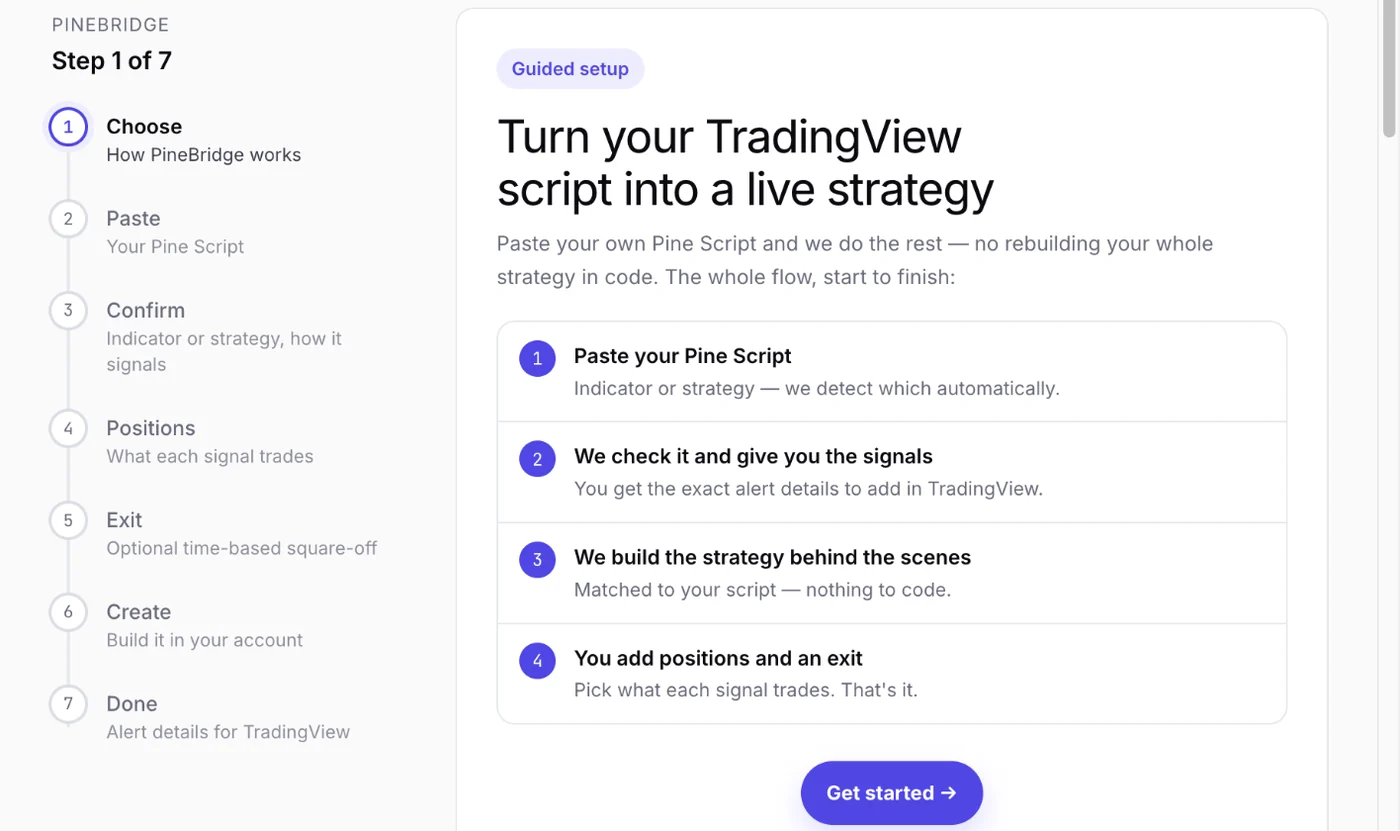 PineBridge's guided setup, start to finish
- Paste your Pine Script. Indicator or strategy, PineBridge works out which.
- It checks the script and gives you the signals, with the exact alert details to add in TradingView.
- It builds the Tradetron strategy behind the scenes, matched to your script. There's nothing to code.
- You add positions and an exit. You pick what each signal trades, and that's it.
Step by step: from Pine Script to a live algo
After you sign in to Tradetron, open Create, then Pine Script Strategy. The setup walks you through each step in order.
1. Paste your script
In TradingView, open your chart, then the Pine Editor tab at the bottom of the screen. Select all of your code, copy it, and paste it into PineBridge. If you only want to see how it works, load the built-in sample: a 9/21 EMA crossover.
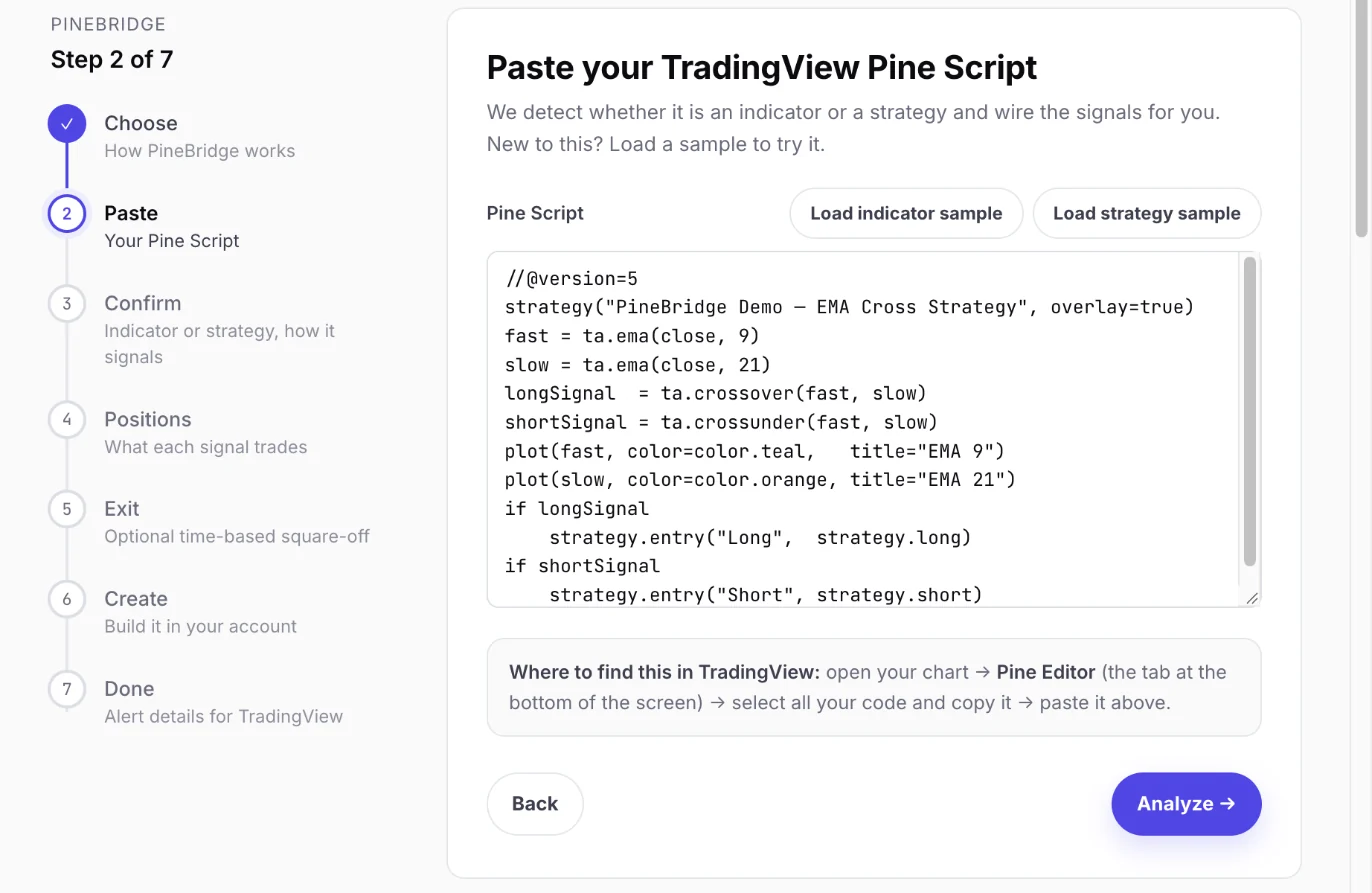 Paste the whole script from TradingView's Pine Editor
2. Confirm what it found and how it signals
PineBridge tells you whether it found a strategy (a script that places simulated orders with strategy.entry) or an indicator (a script that plots and raises alerts). Then you say how your system signals:
- Always in trade: only Long and Short. A new signal flips the position, with no separate exits.
- Entry and exit based: separate Long Entry, Long Exit, Short Entry and Short Exit signals.
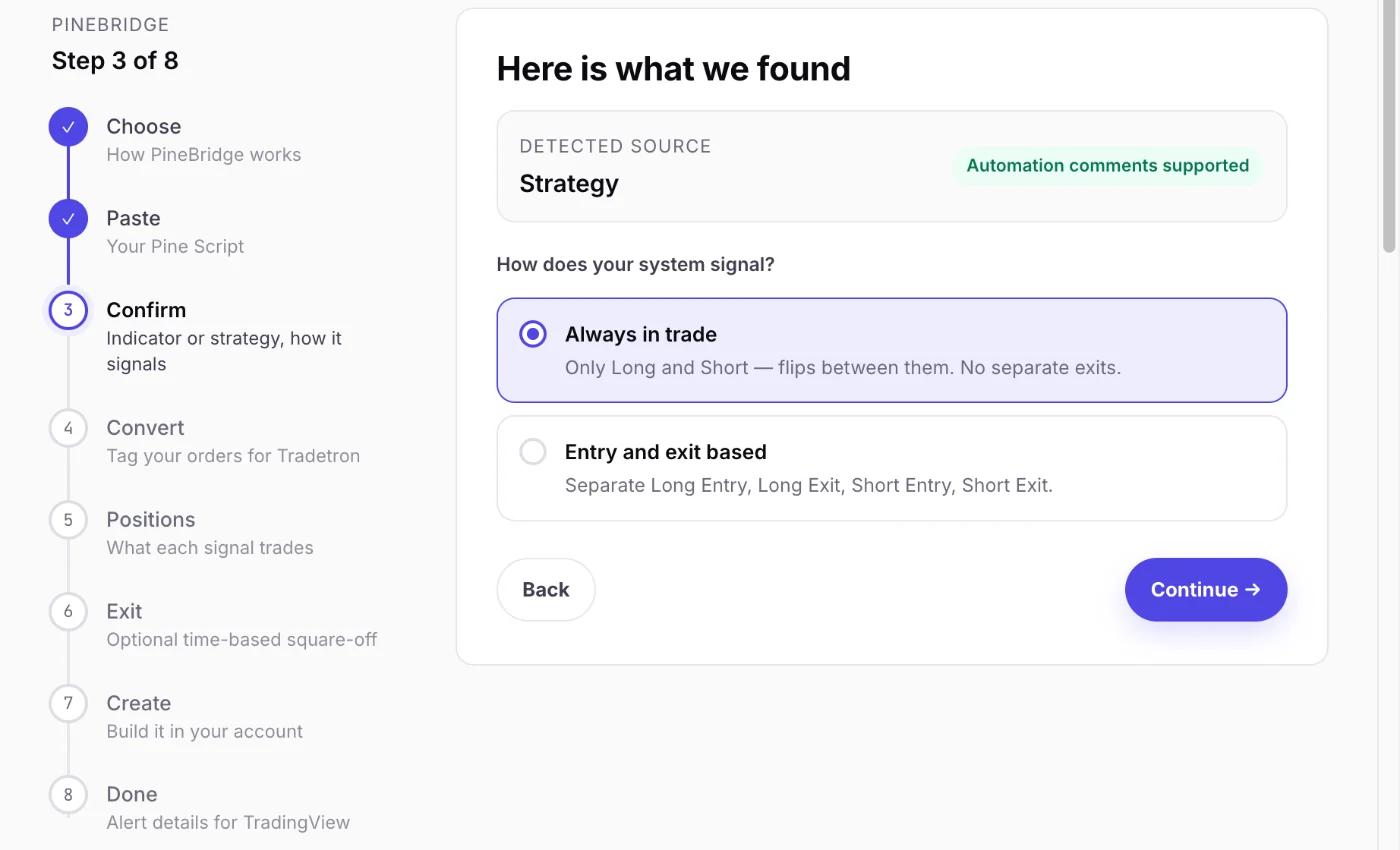 PineBridge detects a strategy and asks how it signals
Not sure which kind your script is? The TradingView webhook guide explains how alerts carry signals. The short version: if your script starts with strategy(, it's a strategy. If it starts with indicator(, it's an indicator.
3. For a strategy: copy back the tagged script
For a strategy, PineBridge adds a short comment to each order in your code: L for long and S for short in the always-in-trade model. That comment travels with every alert and tells Tradetron which signal just fired. Nothing else in your logic changes.
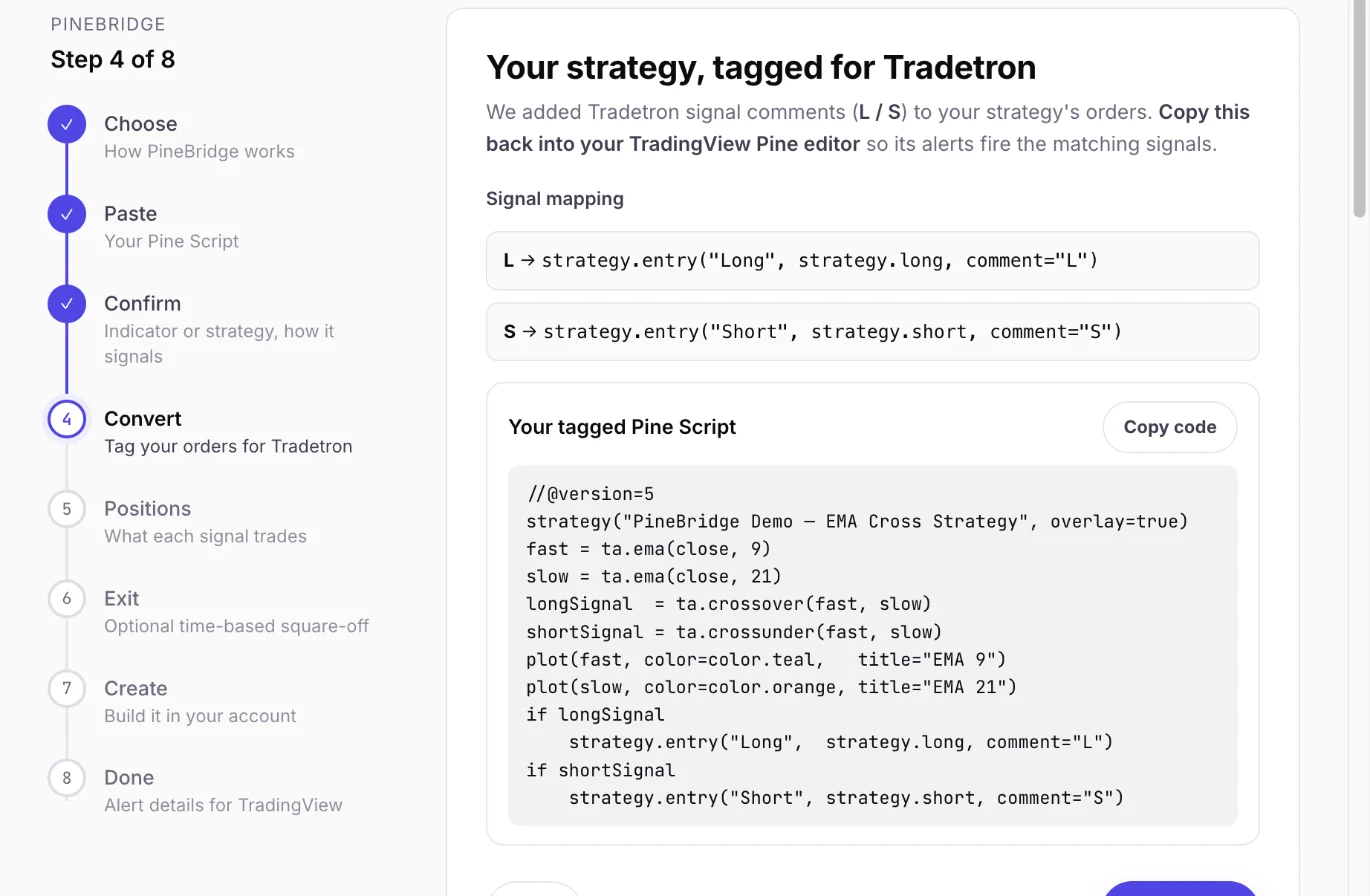 Your script, with signal comments added to each order
Copy the tagged version back into TradingView's Pine Editor and save it. An indicator needs no code change: PineBridge gives you an alert message for each signal instead.
4. Choose what each signal trades
This is where the Tradetron side earns its place. Your script says when; here you set what. For each signal you add one or more legs:
- Buy or sell, on the exchange segment you trade (for example NFO for NIFTY options)
- Options, futures or equity, with the underlying (for example NIFTY 50)
- Strike: ATM (worked out from the spot price when the order is placed), a fixed strike price, or a formula
- Expiry (for example current week), product (for example NRML) and quantity in lots
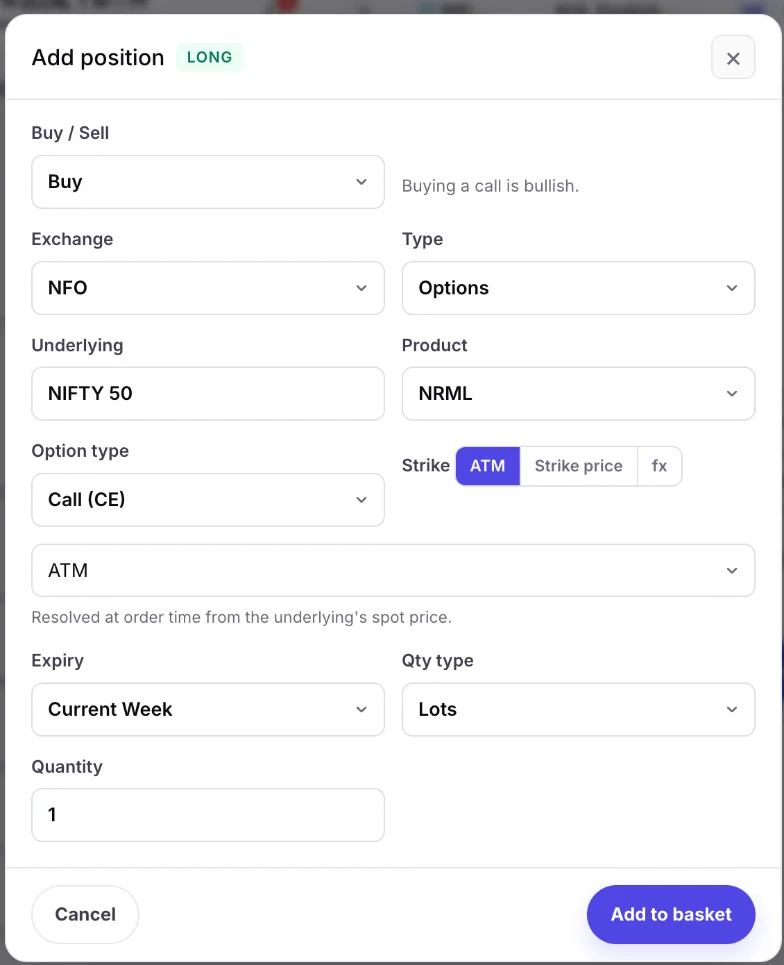 A long leg: buy 1 lot of the NIFTY ATM call, current week
In the example below, a long signal buys the NIFTY ATM call and a short signal buys the NIFTY ATM put. So a chart signal on the index becomes an options trade, with the strike chosen at the moment the signal arrives.
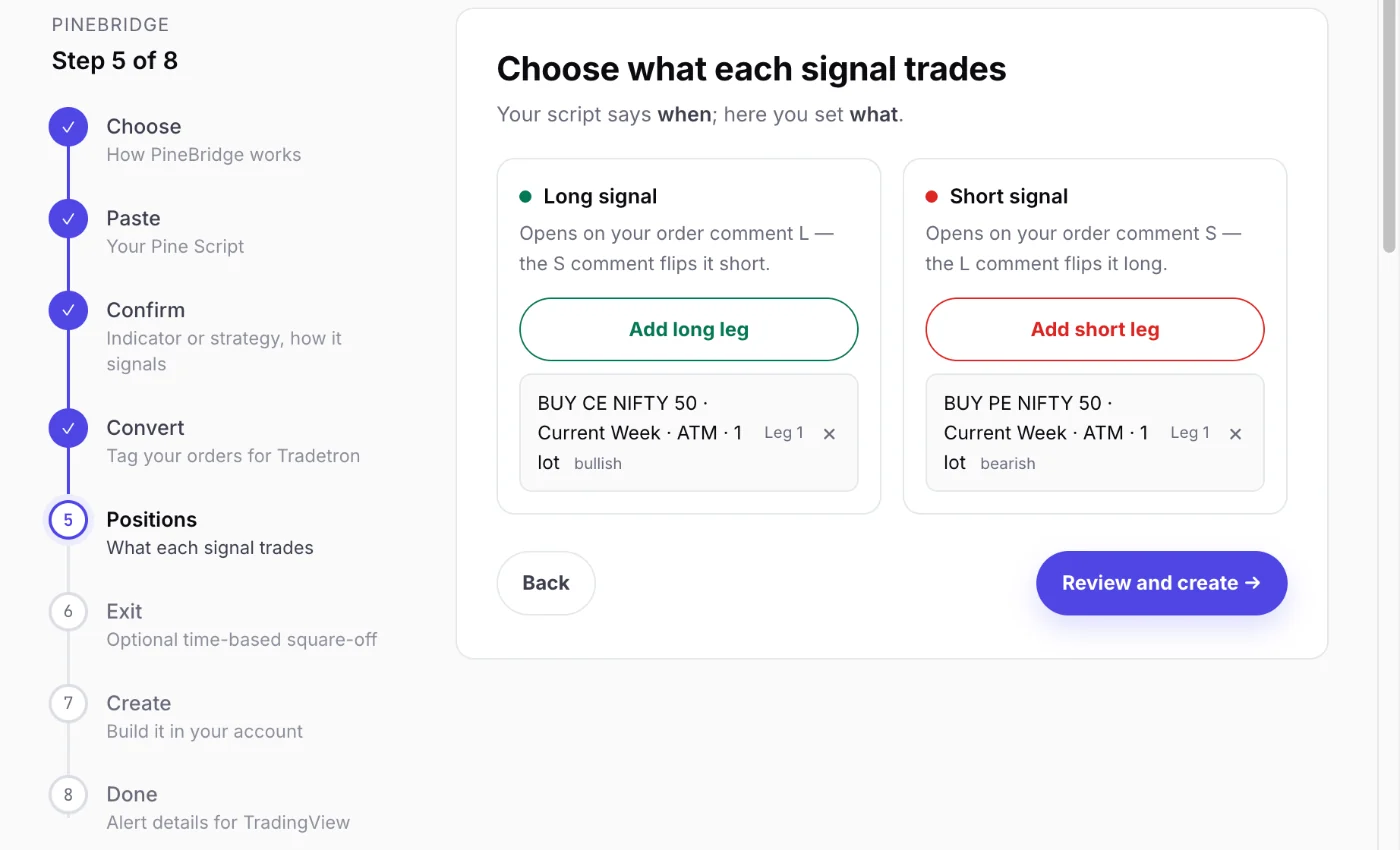 Each signal gets its own basket
5. Add a time exit if you want one
Leave it off and positions run until your signals close them. Or square off on expiry day, or every trading day at a time you pick between 09:15 and 15:29 IST.
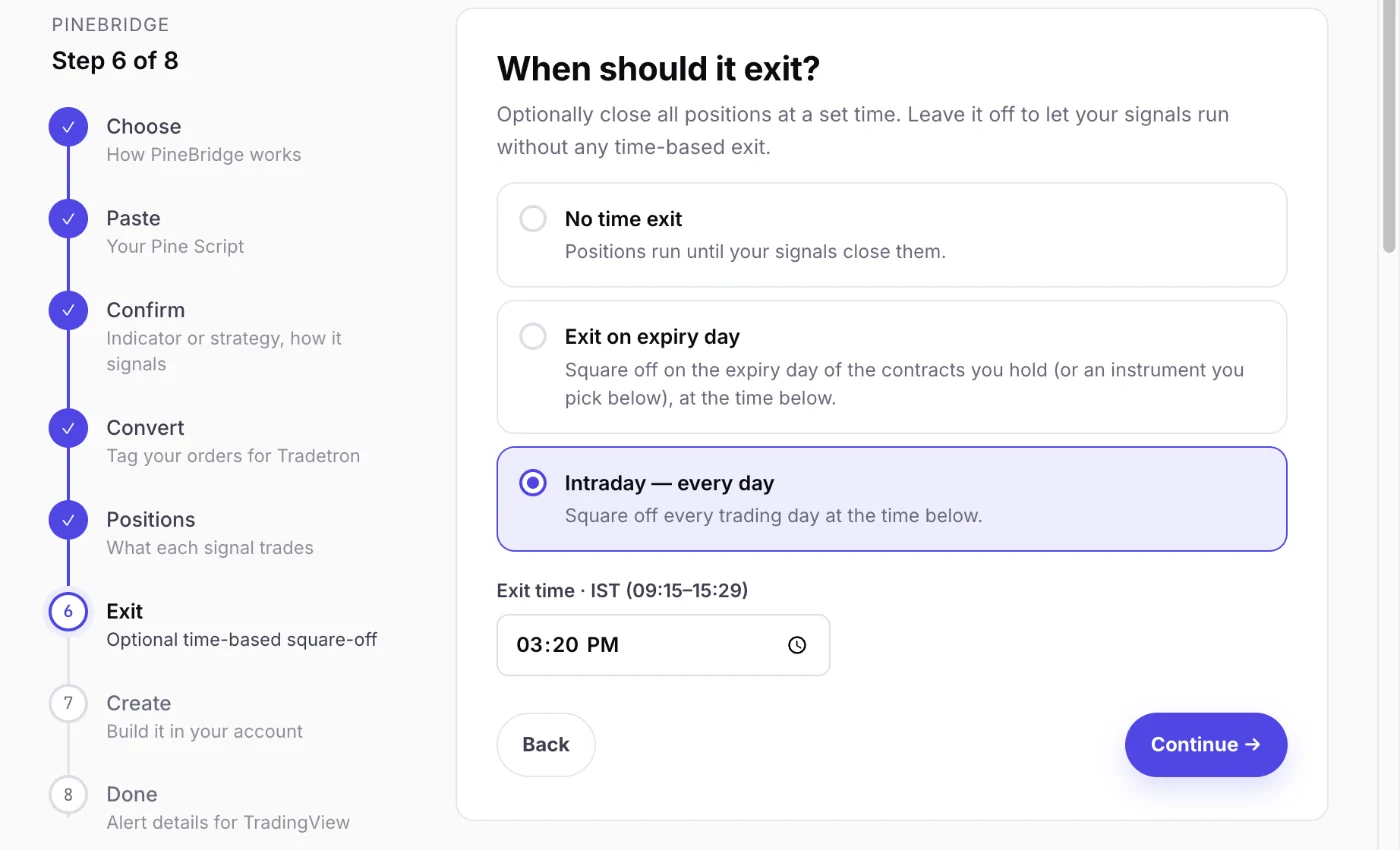 An intraday square-off at 15:20
6. Create the strategy, then add three things to TradingView
PineBridge shows a summary of what you chose, then creates the strategy in your Tradetron account along with your private signal connection.
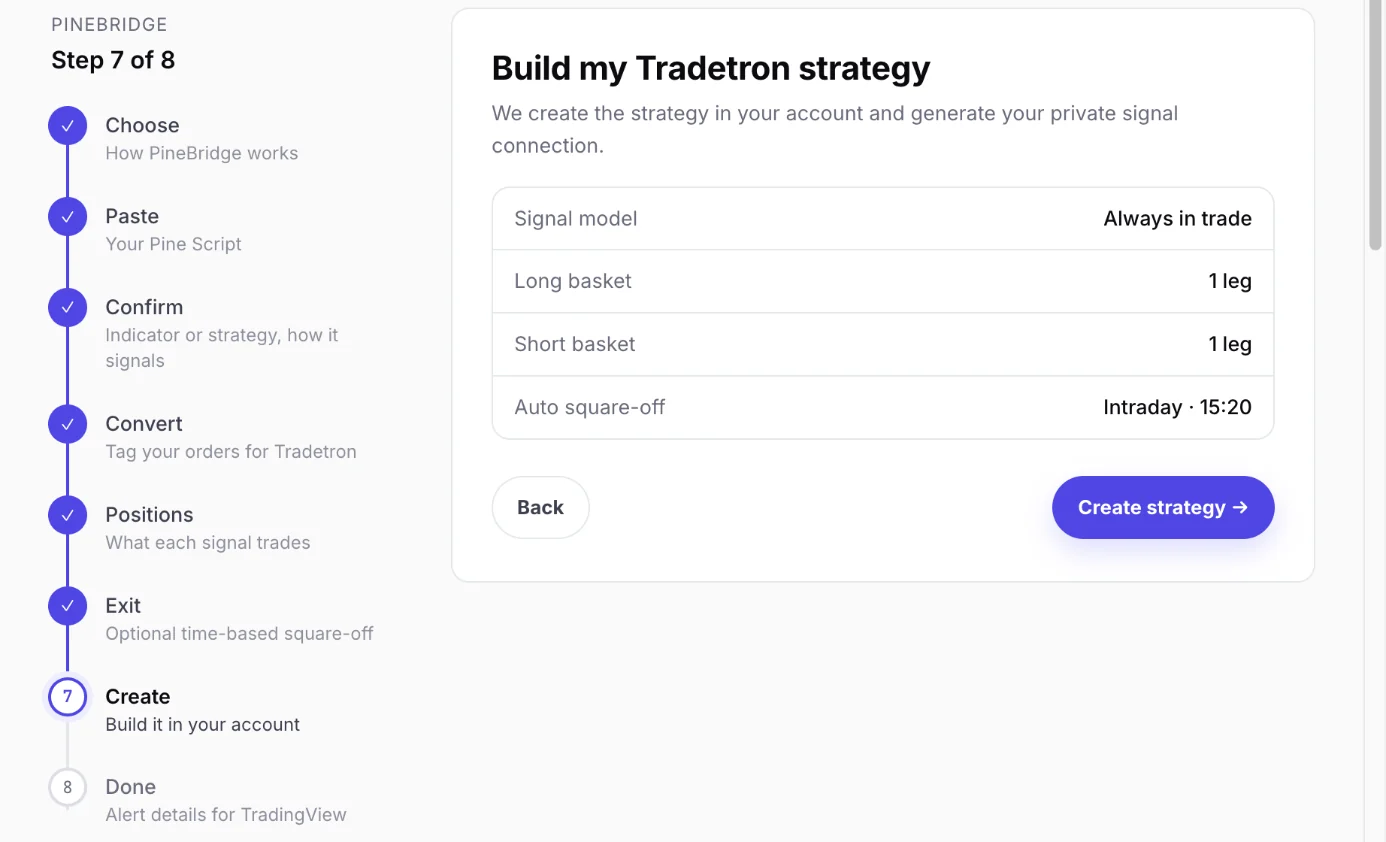 One last check before the strategy is created
The last screen lists exactly what goes where in TradingView:
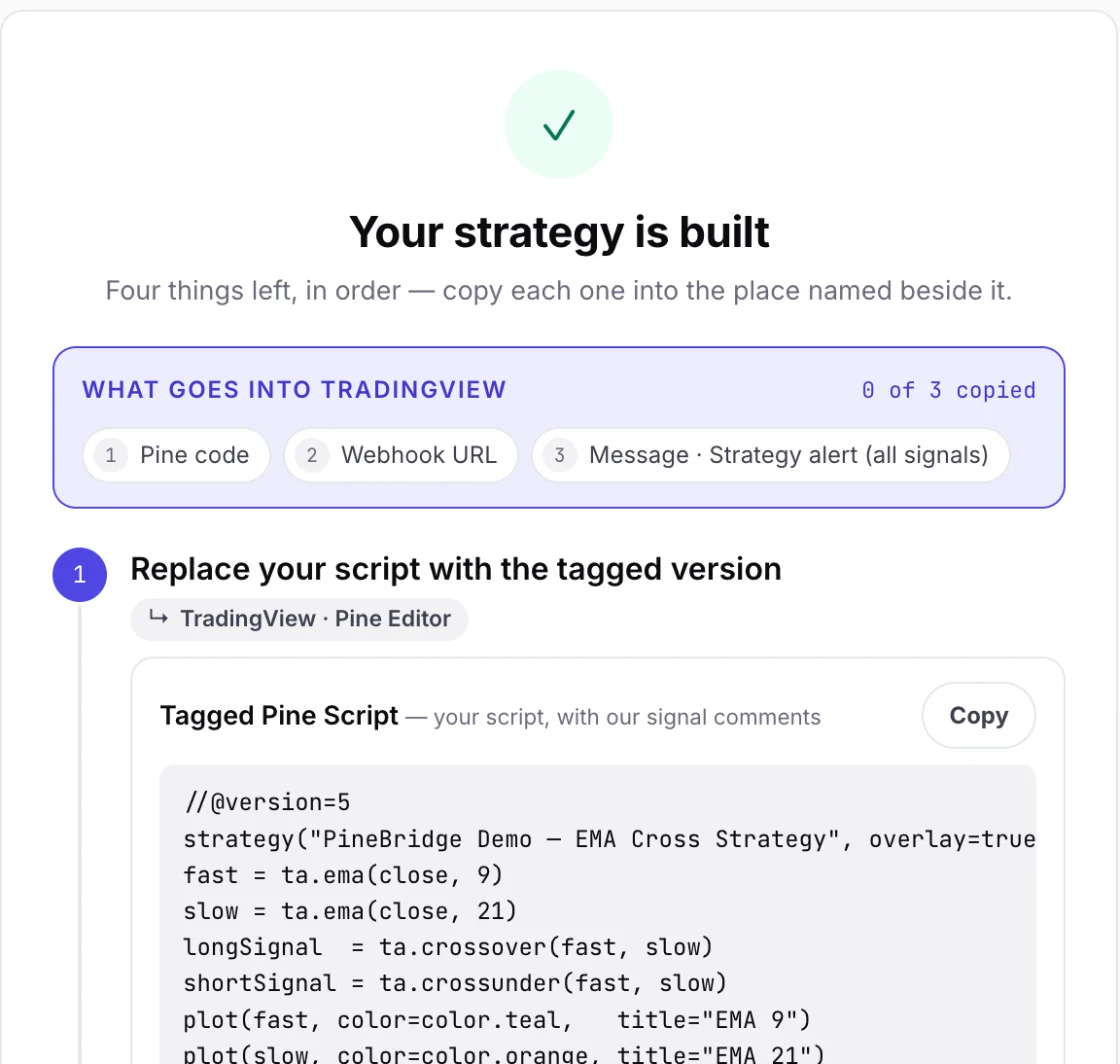 What goes into TradingView, in order
- Pine code: replace your script in the Pine Editor with the tagged version and save it.
- Webhook URL: in the alert's Notifications tab, tick Webhook URL and paste it in.
- Message: create one alert on your strategy, with the condition set to fire on "Order fills and alert() function calls", and paste the message. The order comment (L or S) fills itself in, so one alert covers every signal.
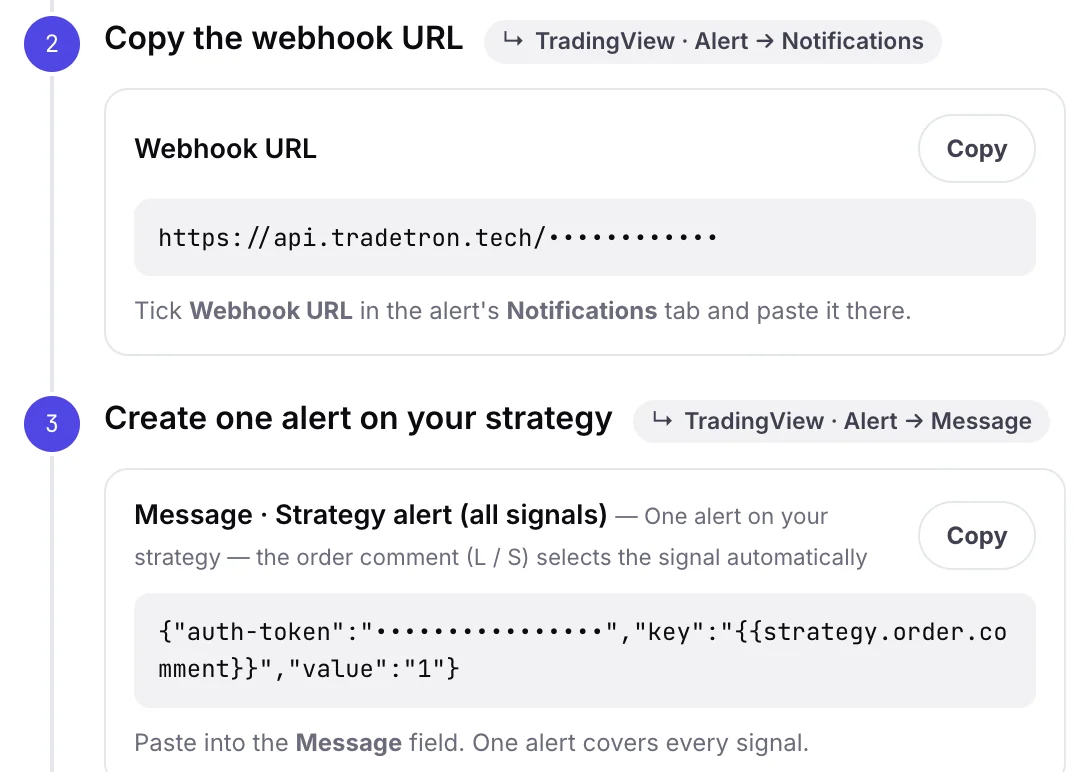 The webhook URL and message, with the private parts hidden
7. Run it Live Offline, then go live
A strategy only acts on TradingView signals while it's deployed. Deploy it Live Offline first: it runs on live prices and records every signal and trade, but Tradetron places no order. Watch a few sessions. Did every alert arrive? Did each signal open the leg you expected, at the strike you expected? Then deploy it Live Auto on your connected broker, starting small. The deployment guide covers the options.
What you need
| You need | Why |
|---|---|
| A paid TradingView plan, with two-factor sign-in turned on | TradingView only sends webhook alerts on paid plans, and asks for 2FA before you can use them. That's TradingView's rule, not Tradetron's. |
| A Tradetron account | PineBridge is in the Create menu, under Pine Script Strategy |
| Your broker connected to Tradetron | Only for Live Auto. See the guides for Zerodha, Angel One, Dhan or any other broker |
| Your Pine Script | Your own, or one you have the right to use |
Since 1 April 2026, API orders in India fall under SEBI's retail algo framework: every algo order carries an exchange-issued ID, and broker APIs only accept orders from a whitelisted address. If your broker needs orders to come from a fixed address, use the virtual server option on that broker's page under Broker & Exchanges in Tradetron. For what the rules mean for you, read SEBI's Algo-ID mandate, explained.
What to watch out for
None of these is unique to PineBridge. They apply to any way of automating TradingView alerts. Knowing them up front is what keeps a script that looked good in the Strategy Tester from surprising you in the first live week. For the wider list, see why backtests and live trading drift apart.
PineBridge or the manual webhook setup?
Tradetron has supported TradingView webhooks for years through the API token and runtime variables. That route still works and gives you full control: you write the alert JSON yourself, and your strategy reads the values with Get Runtime. It's covered step by step in connecting TradingView strategies to Tradetron.
PineBridge does that wiring for you. It tags the script, builds the strategy, and writes the alert message. Pick the manual route if you want custom variables, such as lot sizes sent from the alert. Pick PineBridge if you want your existing script running with the least setup.
Related guides: is TradingView auto trading legal in India?, Pine Script indicator vs strategy, why backtests fail live: TradingView repainting, TradingView to Zerodha auto trading and TradingView brokers in India.
Algo trading carries risk, and past performance, including a backtest, does not indicate future results. This guide is for education and isn't investment advice.
Frequently asked questions
Can I automate a TradingView Pine Script without coding?
Yes. Paste the script into Tradetron's Pine Script Strategy builder (PineBridge), pick what each signal trades, and add the alert it gives you in TradingView. For a strategy, PineBridge adds the signal comments to your code itself. You copy the tagged script back, but you don't write any code.
Does it work with indicators as well as strategies?
Yes. PineBridge detects which one you pasted. A strategy gets signal comments added to its orders, and one alert covers every signal. An indicator keeps its code unchanged, and you add an alert for each signal using the messages PineBridge gives you.
Which brokers can I use?
Any broker connected to Tradetron, including Zerodha, Angel One, Upstox, Dhan, Fyers, Alice Blue, Kotak Neo and Motilal Oswal. The broker only matters when you go Live Auto. Live Offline needs no broker.
Do I need a paid TradingView plan?
Yes. TradingView sends alerts to a webhook URL only on its paid plans, and asks you to turn on two-factor sign-in first.
Can a long signal buy an option instead of the index?
Yes. That's the point of choosing positions per signal. A long signal on the NIFTY chart can buy the ATM call, sell a put, or open a multi-leg basket. The strike is worked out from the spot price when the order is placed.
Can I backtest the automated version on Tradetron?
Not as a webhook strategy, because there are no past alerts to replay. Use TradingView's Strategy Tester for the history of your script, then run the Tradetron strategy Live Offline to see how it behaves on live prices before going Live Auto.
Is automating TradingView alerts allowed in India?
Yes, through your broker's API under SEBI's retail algo framework, which applies in full since 1 April 2026. Orders are tagged with an exchange-issued algo ID, and broker APIs only accept orders from a whitelisted address. Tradetron sends orders through your broker's official API connection.
Where do I find my webhook URL and alert message later?
In Tradetron, under My Strategies. Open the strategy's API section. The webhook details are saved with the strategy, so you can come back to them when you edit the alert.