How to Deploy a Strategy in Tradetron: Step-by-Step Guide
To deploy a strategy in Tradetron, open My Strategies, click Deploy on the strategy, choose a multiplier, pick the execution type (Live Offline to test or Live Auto to send orders to your broker), select your broker, and confirm. The strategy then checks its conditions on its own and trades when they are met.
How to deploy a Tradetron strategy safely: Live Offline first, then Live Auto at 1x, in 3 minutes. हिन्दी में देखें: Tradetron पर strategy को deploy कैसे करें, सुरक्षित तरीके से, 3 मिनट में

What "deploying" means on Tradetron
A strategy you build or subscribe to is just a set of rules until you deploy it. Deploying puts those rules to work: from then on, Tradetron checks the conditions during market hours and places, modifies or exits positions when they are met.
You decide two things at deploy time: how big (the multiplier on the strategy's quantities) and where the orders go (the execution type and broker).
| Execution type | What happens to orders | Use it for |
|---|---|---|
| Live Offline | The strategy runs and records every trade, but nothing is sent to the exchange | Testing any strategy on live market data, with no money at risk |
| Live Auto | Orders are sent automatically to your connected broker | Trading the strategy with real money |
Before you deploy: three checks
- Know what you're deploying. Read the conditions, legs, stop losses and Advanced Settings. If it's a marketplace strategy, read its description and required capital.
- Backtest it (for strategies you built). A backtest runs your rules over historical data and gives you a report. See all about backtests in Tradetron.
- Run it Live Offline for a while. A backtest shows the past; Live Offline shows how the strategy behaves on today's live prices, including its timing and exits.
Step 1: Create a strategy or pick one from the marketplace
Build your own from the Create menu (the no-code builder, Option Wizard, or a Stockbag for portfolios), or open Marketplace under Strategies to subscribe to a strategy built by a creator.
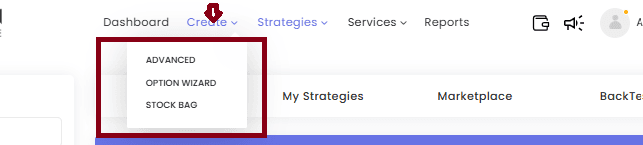 Create a strategy from the Create menu
If you're new to building, start with keywords in Tradetron or browse the marketplace guide.
Step 2: Connect your broker
The deploy window asks you to choose a broker, so connect yours first. In Live Offline nothing is sent to it; in Live Auto it receives the orders.
- Click your profile name at the top right and open Broker & Exchanges.
- Click Add Broker and choose your broker from the list (Zerodha, Angel One, Dhan and many more are supported).
- Enter the details your broker's API requires and complete the broker's login.
- Check the connection shows as active before you deploy.
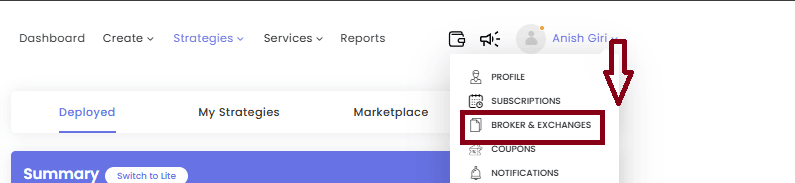 Profile menu → Broker & Exchanges
Broker-specific walkthroughs: Zerodha, Angel One, Dhan, and the general broker setup guide.
Step 3: Click Deploy
Go to Strategies → My Strategies. Every strategy you created or subscribed to shows as a card with Deploy, Edit and Backtest buttons.
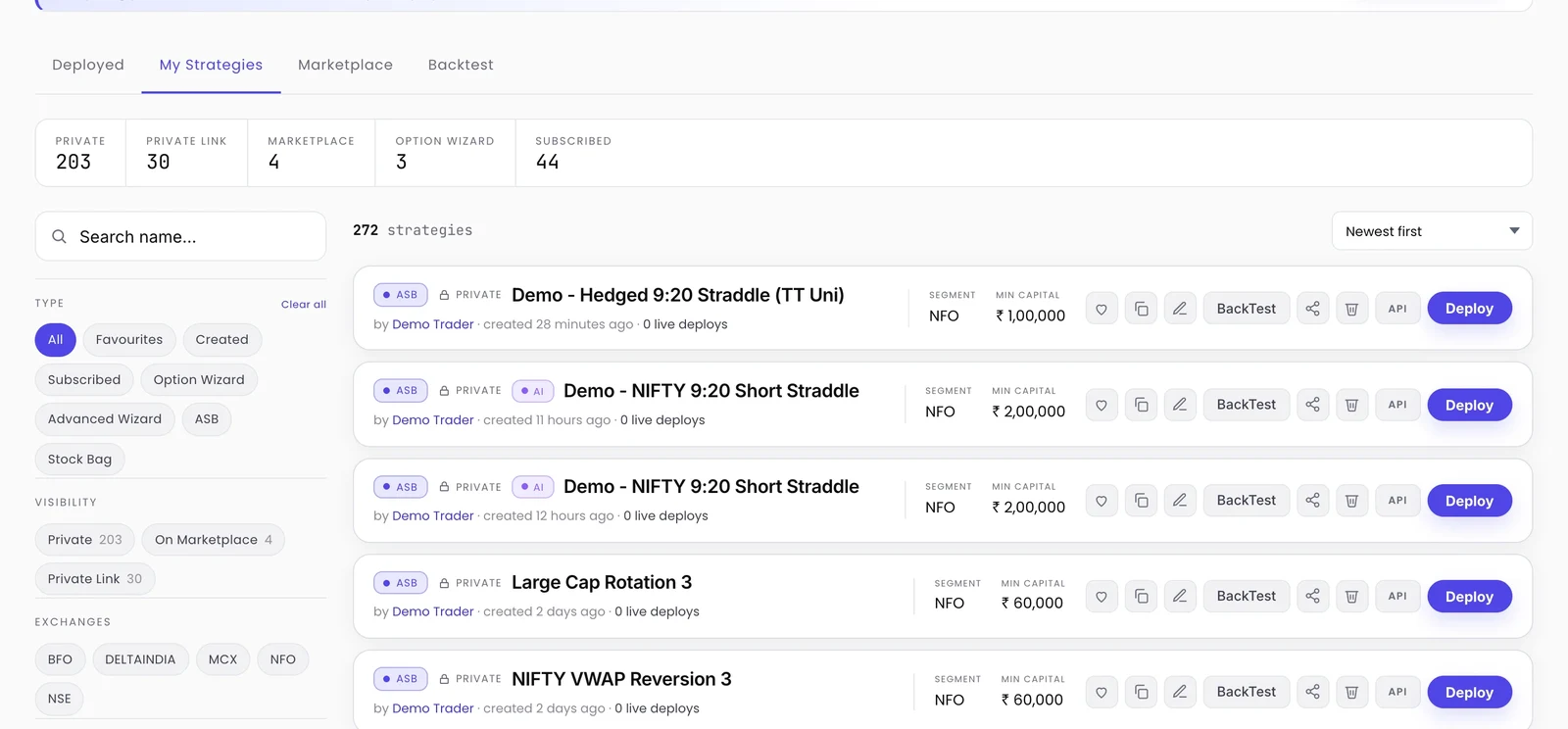 My Strategies: each strategy has its own Deploy button
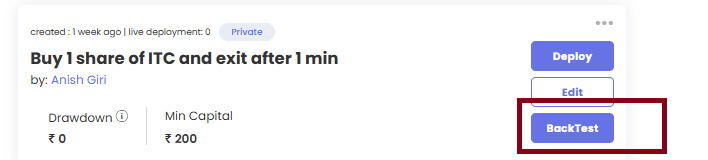 Each strategy card has Deploy, Edit and Backtest
Step 4: Set multiplier, execution type and broker
The deploy window asks for:
- Multiplier: scales every leg's quantity. At 1x, a leg written as 1 lot trades 1 lot (65 units of NIFTY, 30 of BANK NIFTY); at 2x it trades 2 lots.
- Capital recommended: what the strategy's creator expects you need. It's information, not a limit.
- Select Execution Type: Live Offline or Live Auto.
- Broker: the broker account the orders should use.
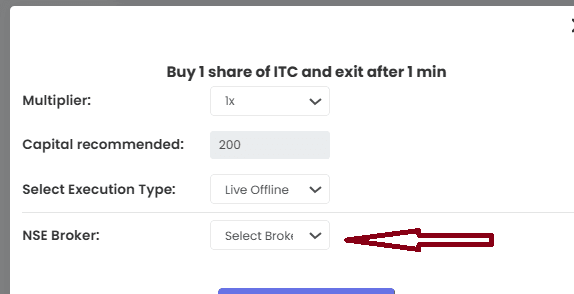 Choose multiplier, execution type and broker, then click Deploy
Click Deploy. The strategy now appears under Deployed.
Step 5: Monitor, pause and review
Open Strategies → Deployed to see every running strategy with its status and P&L. The menu on each deployment gives you the controls you'll use most:
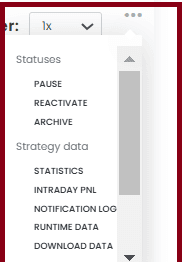 The menu on a deployed strategy
| Action | What it's for |
|---|---|
| Pause | Stop the strategy checking conditions for now |
| Reactivate | Start a stopped deployment again |
| Statistics / Intraday PNL | See how the deployment has done |
| Notification Log | Every message the strategy produced: entries, exits, errors |
| Runtime Data | The values your conditions saw, for debugging |
| Download Data | Export the deployment's trades |
When something doesn't happen the way you expected, the Notification Log and Runtime Data are where to start. The debugging guide walks through it.
Common mistakes to avoid
Do
- Backtest, then Live Offline, then Live Auto at 1x
- Check margin for the multiplier you choose
- Keep stop losses and a Universal Exit in every strategy
- Read the Notification Log daily for the first week
Don't
- Jump straight to Live Auto with a strategy you haven't watched run
- Raise the multiplier after one good week
- Change a strategy's logic while it has open positions without testing the change first
- Ignore error messages in the Notification Log
Best practices from experienced deployers
- Start small. The first real-money deployment is a test of execution (fills, slippage, broker behaviour) as much as of the strategy.
- Have a kill switch. A strategy-level stop loss (the PNL keyword in an exit condition, or the trailing stop in Advanced Settings) caps a bad day.
- Review on a schedule. Markets change. A monthly look at results against the backtest tells you when a strategy has drifted. Nine reasons a backtest doesn't match live trading explains the usual gaps.
Frequently asked questions
How do I deploy a strategy in Tradetron?
Go to Strategies → My Strategies, click Deploy on the strategy, set the multiplier, choose Live Offline or Live Auto as the execution type, select the broker and click Deploy. It then appears under Deployed.
What is the difference between Live Offline and Live Auto?
Live Offline runs the strategy on live market data and records every trade, but nothing is sent to the exchange. Live Auto sends real orders to your connected broker.
Do I need a broker account to deploy?
Connect one under Broker & Exchanges, as the deploy window asks you to pick a broker. In Live Offline no orders are sent to it, so you can watch a strategy without risking money; in Live Auto it places the real orders.
Can I deploy strategies created by other traders?
Yes. Subscribe to a strategy in the marketplace and it appears in My Strategies, where you can deploy it like your own.
Can I edit a strategy after deploying it?
You can pause a deployment from the Deployed tab and edit the strategy. Avoid changing logic while positions are open, and test any change Live Offline before it trades real money.
What does the multiplier mean when deploying?
It scales every leg's quantity. At 2x, a leg written as 1 lot trades 2 lots, and the capital and margin needed roughly double.