How to Debug a Strategy in Tradetron: Why It Isn't Trading
To debug a strategy in Tradetron, start with the deployment's Notification Log. A blank log means the entry condition was never true or a keyword is written wrongly; a log that repeats the entry condition without a trade points to the position builder; a log with keyword values lets you compare what the strategy saw against your chart.
Why a Tradetron strategy isn't trading, and how the Notification Log tells you which of three problems you have, in 3 minutes. हिन्दी में देखें: मेरी strategy trade क्यों नहीं कर रही? Tradetron पर उसे debug कैसे करें, 3 मिनट में

Step 1: Open the Notification Log
Go to Strategies → Deployed, open the menu (three dots) on the deployment and choose Notification Log. It lists every message the strategy produced: condition values, status changes, orders and errors.
What you see there sorts the problem into one of three cases:
| What the log shows | What it usually means | Where to look |
|---|---|---|
| Nothing at all | The entry condition was never true, or a keyword is malformed | Condition builder syntax |
| The entry condition logged again and again, but no position | The condition is true but the order can't be built | Position builder |
| Entry values, then a trade you didn't expect | The strategy saw different values from your chart | Compare keyword values with the chart |
Case 1: The Notification Log is blank
A blank log means either the condition was never met or one of the conditions has a syntax problem.
- Check the syntax. Open the condition builder and compare each keyword against the keyword documentation: the right inputs, the right instrument, the right candle size. Keywords in Tradetron explains the common ones.
- Check the chart. Was the condition really true during market hours? Remember which candle you are reading: position 0 is still forming, -1 is the last closed candle.
- Force an entry to test the rest. Add a simple condition such as Time ≥ 915 at the top of the entry conditions and switch the logic to OR. Since the time condition is now true, the strategy should enter.
- Read the log again. Once it enters, the log shows the value of every keyword. If none show an error, your original condition simply wasn't satisfied on the data Tradetron received.
- Remove the test condition before you rely on the strategy.
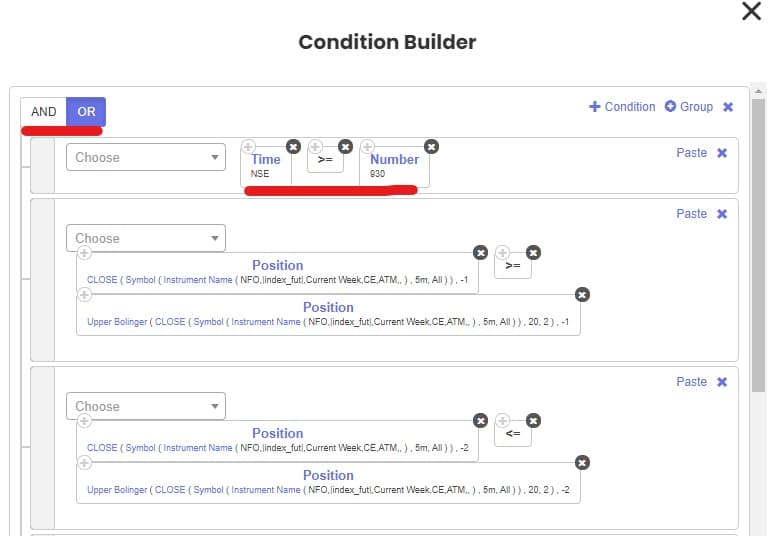 Force-entry test: Time ≥ 915 on top, logic set to OR
Other reasons a strategy stays silent
- It is set to API control. A strategy linked to an API OAuth token waits for an external signal and won't trade on its own conditions. See below.
- The trading window. Advanced Settings' Take trades limits when conditions are acted on after the open and before the close. An entry timed outside that window never fires.
- Check conditions every. If conditions are checked every 5 minutes, a signal that lasts two minutes between checks is missed. Details in Advanced Settings explained.
- The deployment is paused or stopped. Check its status on the Deployed tab.
Is your strategy set to API control by mistake?
On the My Strategies page, a strategy can be linked to an API OAuth token so an external system (for example a TradingView alert) controls it. If you did that by mistake, the strategy sits waiting for signals that never come.
- Go to Strategies → My Strategies and open the three-dot menu on the strategy.
- Click API OAuth Token.
- Set API Controlled to Un Link and click Proceed.
- Redeploy the strategy.
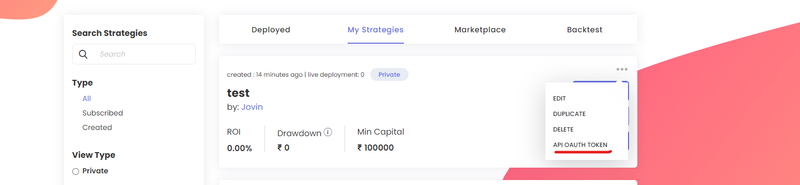 Three-dot menu → API OAuth Token
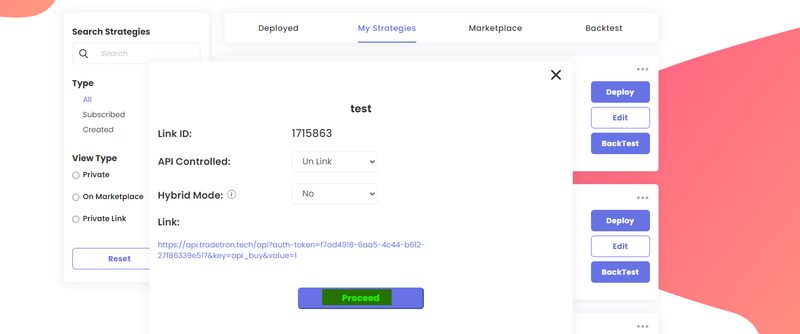 Set API Controlled to Un Link, then redeploy
Case 2: The entry condition repeats in the log, but no trade
If the log shows the entry condition being evaluated as true over and over without a position appearing, the conditions are fine: the problem is in the position builder. The strategy keeps trying to enter and can't build a valid order.
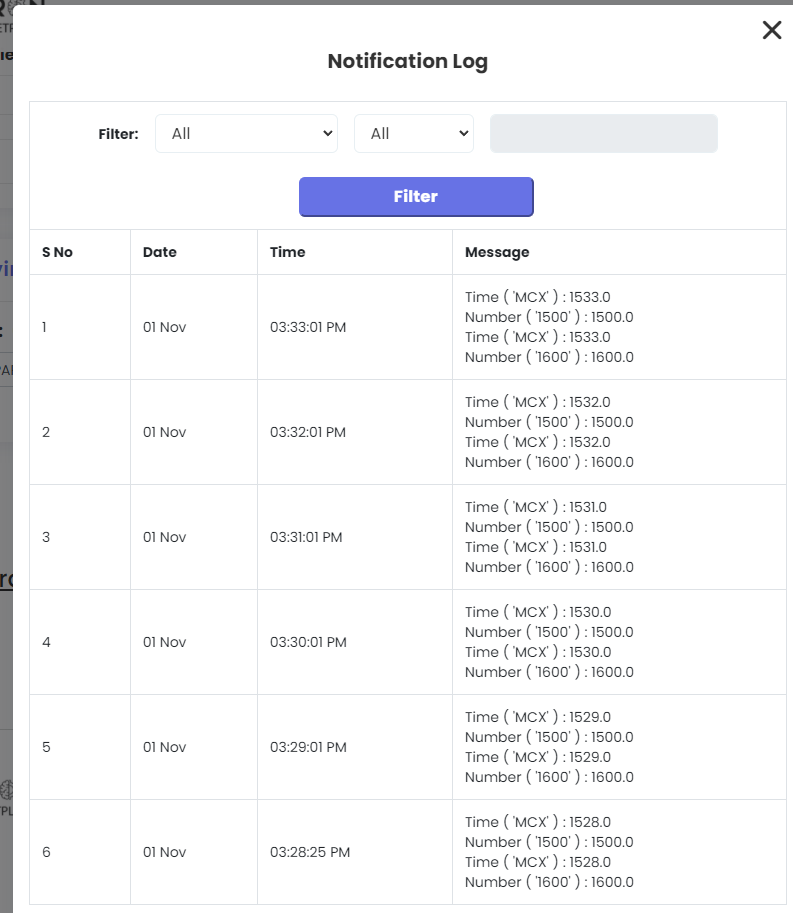 The entry condition is logged repeatedly: look at the position builder
The usual culprits:
| Mistake | Fix |
|---|---|
| Qty type set to Qty with 1 on an F&O leg | Use Lots. F&O trades in lots (NIFTY 65, BANK NIFTY 30), so 1 unit is not a valid order |
| Wrong keyword inside the strike formula | Check the strike keyword (ATM, Find Strike) and its inputs |
| Find Strike returns nothing | No strike in the option chain matches your Find Strike parameters: widen them |
| Underlying not selected in the expiry formula | Select the underlying in the expiry keyword |
| Expiry that doesn't exist | BANK NIFTY, FINNIFTY and MIDCPNIFTY have monthly expiries only; NIFTY 50 is the weekly one on NSE |
Fix the leg, update the strategy, and the next true entry should take the position.
Case 3: A trade happened, but it looks wrong
Sometimes the strategy enters, but not where you expected from the chart. The Notification Log records the output of every keyword at the moment of entry, so you can see exactly what the strategy saw.
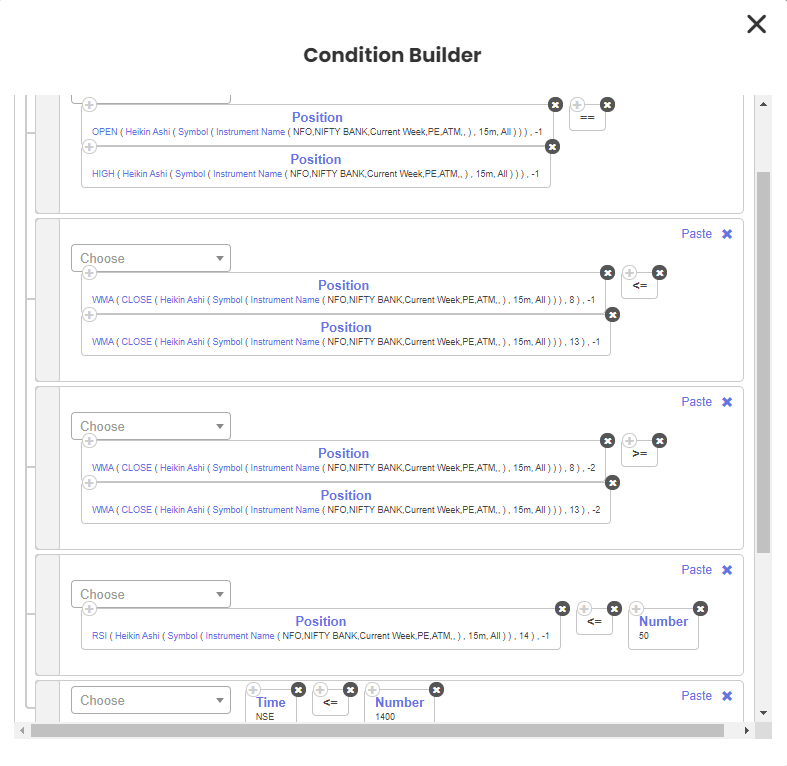 The entry conditions
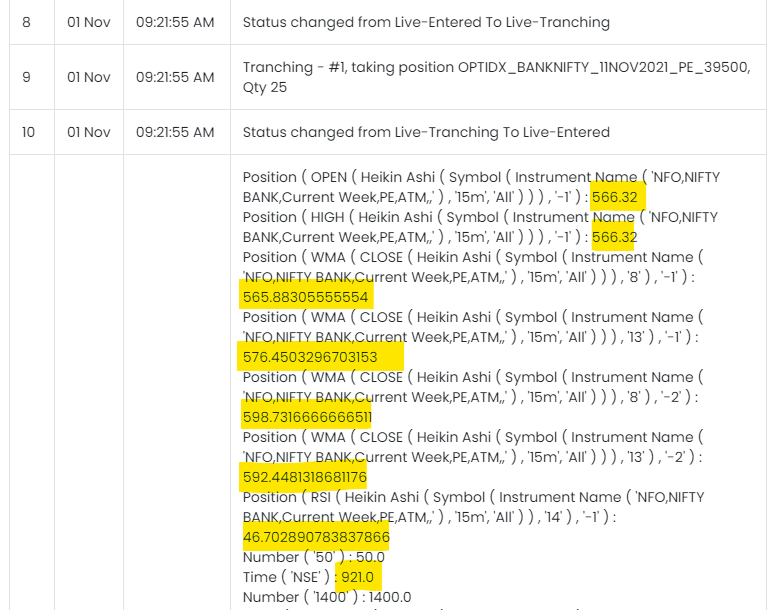 The log at entry: each keyword's value at the moment the trade was taken
Line each logged value up against your chart. Differences usually come from:
- A different candle. Position 0 versus -1, or a different candle size from the chart you're looking at.
- A different instrument. Spot index versus futures versus the option, or a different expiry.
- Different settings. Indicator period or source (close versus Heikin Ashi close) not matching the chart.
- Data timing. A forming candle (position 0) can show one value at entry and a different one when it closes.
Statuses you'll see in the log
| Status | Meaning |
|---|---|
| Active | Deployed and checking conditions, no position |
| Live-Entered | In a position |
| Live-Tranching | Placing an order in parts (tranching), a passing state |
| Error Execution | An order failed (for example unfilled after the final price action, or rejected): read the message |
If none of this solves it, contact Tradetron's chat support or email [email protected] with the strategy name and the time of the issue.
Frequently asked questions
Why is my Tradetron strategy not taking a trade?
Check the Notification Log. If it's blank, the entry condition wasn't met or a keyword has a syntax issue. If the entry repeats without a trade, the position builder has a mistake. Also check the strategy isn't set to API control or paused.
Where do I find the Notification Log?
On the Deployed tab, open the three-dot menu on the deployment and choose Notification Log.
How do I force a strategy to enter for testing?
Add Time ≥ 915 at the top of the entry conditions and switch the logic to OR. The strategy should enter, and the log then shows every keyword's value. Remove the test condition afterwards.
What does it mean if the entry condition keeps repeating in the log?
The condition is true but the order can't be placed. Check the position builder: Lots instead of Qty for F&O, the strike and expiry formulas, and whether Find Strike can find a strike.
Why did my strategy take a trade that doesn't match my chart?
Compare the keyword values in the Notification Log with your chart. Most mismatches come from a different candle position, candle size, instrument or indicator setting.