

Zerodha needs a static IP whitelisted in your Kite Connect app. Follow these steps.
Part 1: Buy the static IP in Tradetron
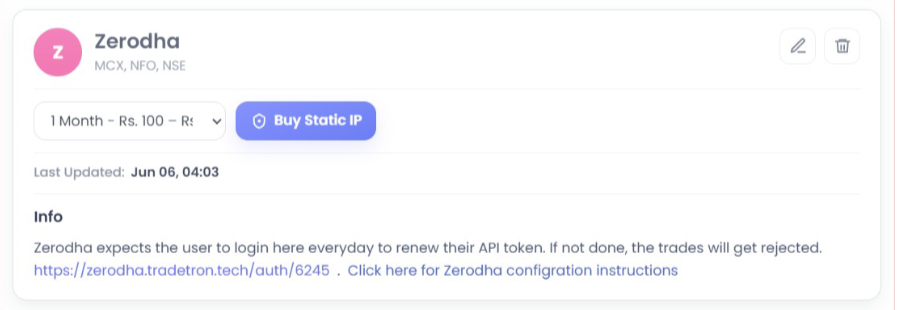
- Open Broker & Exchanges, select Zerodha, enter dummy credentials for now and save.
- Buy a static IP from the Broker & Exchanges page.
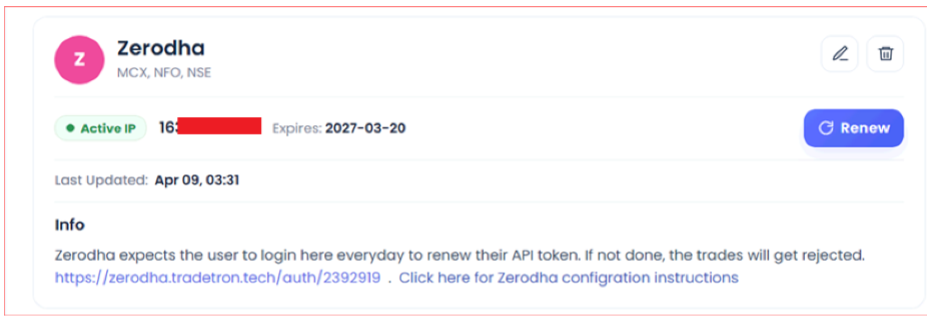
- The purchased IP now shows on the Broker & Exchanges page:
Part 2: Set up Kite Connect
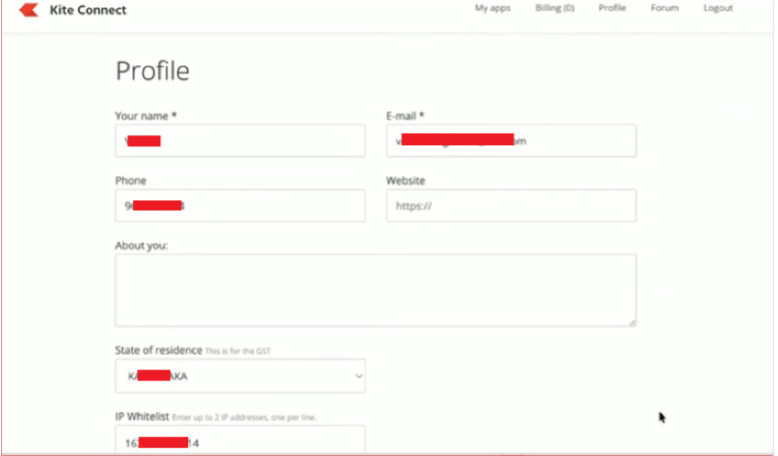
- On the Kite Connect website, open your Profile, enter the static IP and save. Complete your profile details if needed.
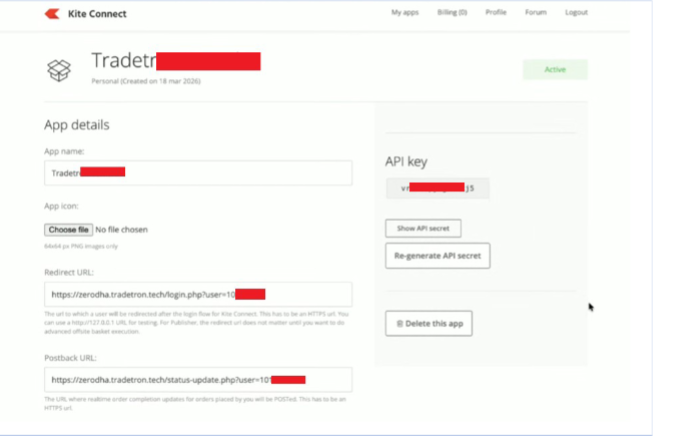
- Go to My Apps and fill in the app details:
- Redirect URL:
https://zerodha.tradetron.tech/login.php?user=followed by your Tradetron user ID - Postback URL:
https://zerodha.tradetron.tech/status-update.php?user=followed by your Tradetron user ID - Use your Tradetron user ID here, not your Zerodha ID.
- Redirect URL:
- On the same page, enter your Zerodha client ID correctly and save.
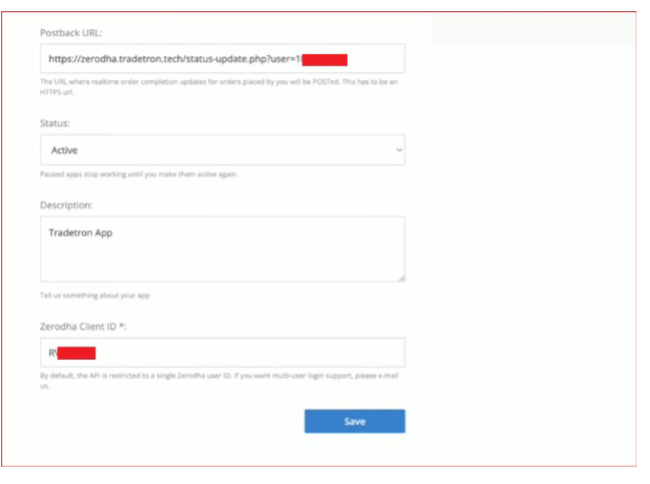
Part 3: Add credentials in Tradetron
- Copy the details from Kite Connect into the Zerodha card on Broker & Exchanges:
- API Key, API Secret, Zerodha ID, PIN and Password must all be correct.
- Leave Token blank.
- No spaces anywhere in the credentials.
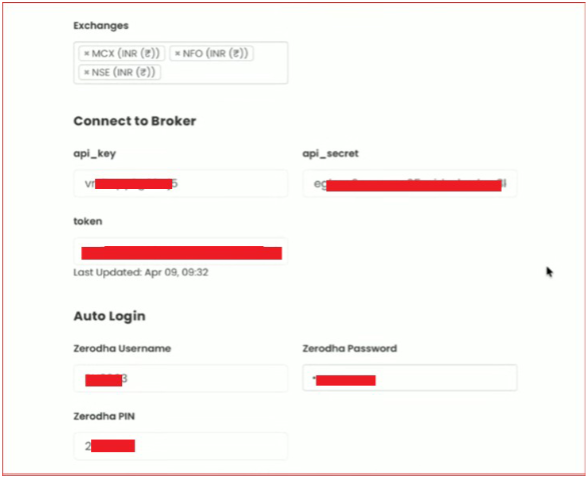
- Save, then click the Auth Token Generation link.
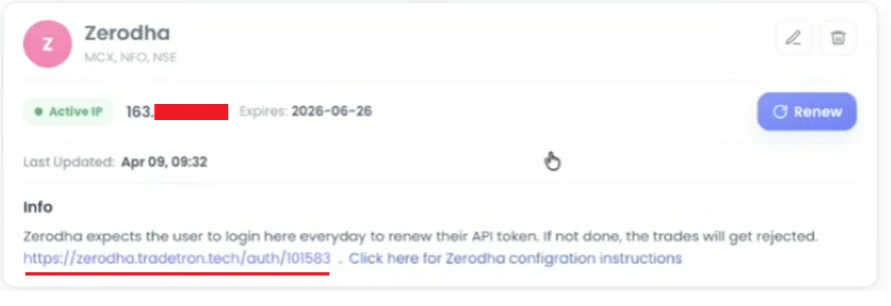
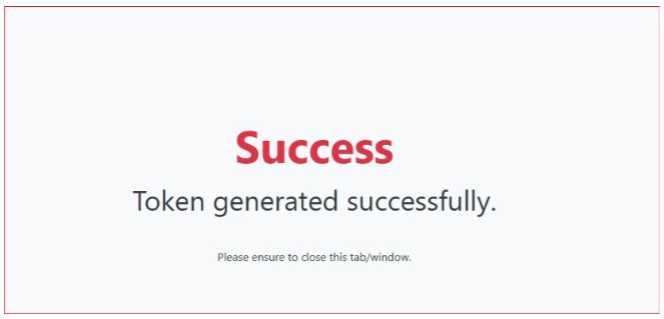
- Log in on the Zerodha page that opens. You will see a Success message once the token is generated.
Daily login
Zerodha tokens must be renewed every day. Log in through the auth link each trading day, or your orders will be rejected.
Static IP is a paid add-on (₹100/month, ₹250/3 months, ₹1000/year), tied to one broker on one Tradetron account.
 Edited with AI from the original Tradetron article, checked against current docs (Oct 2026). Spot something wrong? Tell us in the Community.